

Command Center
Live shared operations
Server online
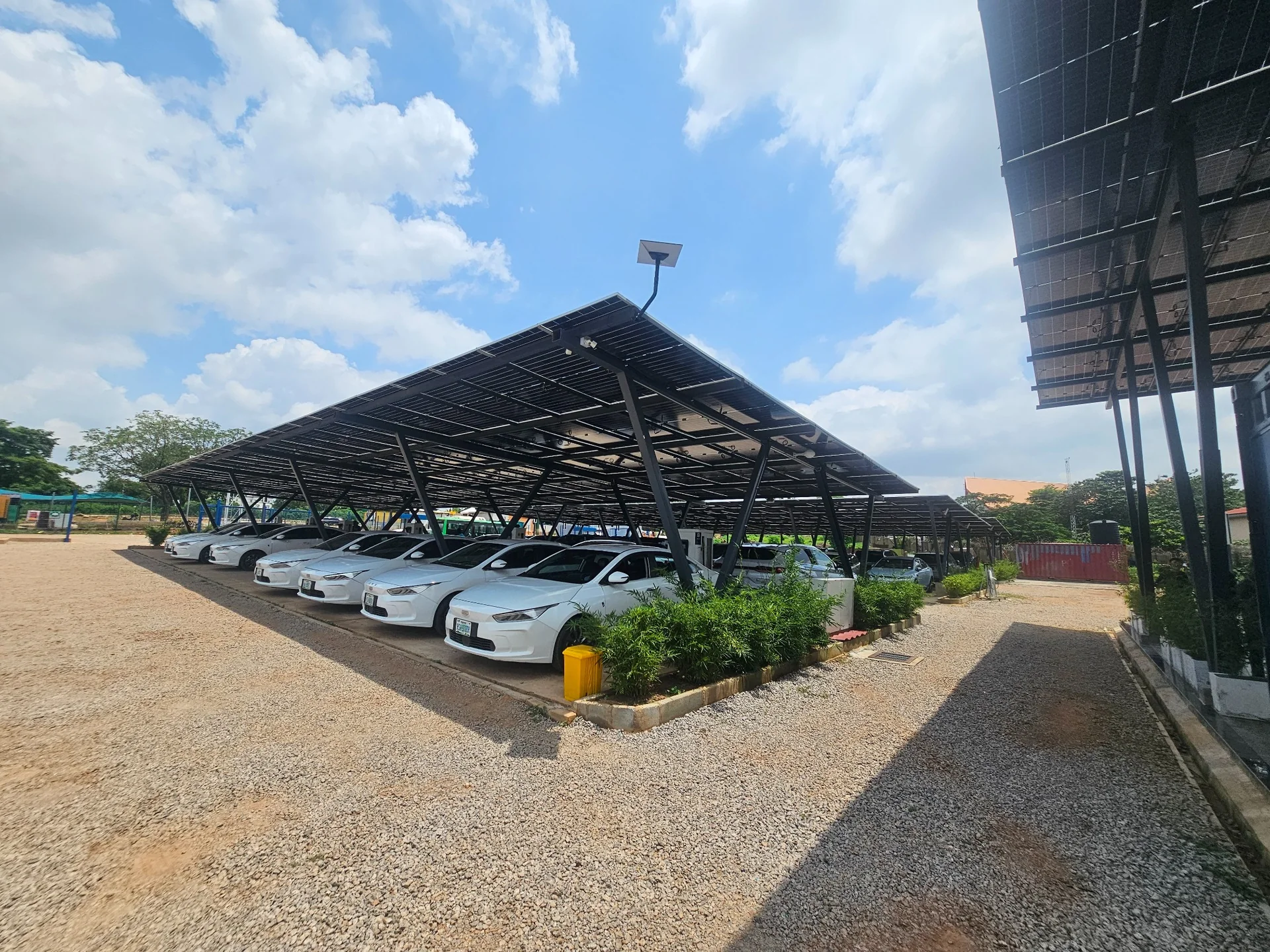
CAMEL EV 01 · LIVE OPERATIONS
Good day, Team.
Loading station status…
☀
Day operationsSolar-led fleet activity
Operations health—
Fleet return progress—Loading today’s vehicle status…
YOUR CAMEL ERP HOME
Everything you are allowed to use — grouped clearly.
Choose a workspace below. The buttons change automatically according to your role and permissions.
Role workspaceLoading…
MY SHORTCUTS
Fast access to the work you use most.
Pin pages from the homepage or press Ctrl+K to find anything.
Recently opened
Today's safety
Protected pilot dataUse Backup Centre before upgrades or major corrections.
YOUR AUTHORIZED WORKSPACE
RoleLoading your workspace…
Role-specific priorities and actions.
My attention queue
Quick actions
Priority controls
Items requiring attention now
Recent activity
Central server audit trail
| Time | Action | Module | User |
|---|
Station network
One operating station and four expansion slots
Reference performance
July 2026 operational baseline
Total allocation₦37.674m
Corrected paid₦31.584m
Unpaid₦6.090m
The corrected source covers 1–31 July 2026. Where numeric paid/unpaid cells were blank on 29–31 July, Camel ERP uses the explicit PAID or NOT PAID status and labels the basis for audit review.
THE CAMEL EV EXPERIENCE
Camel EV 01 · Abuja
Real infrastructure. Real operations. One intelligent system.
Dedicated station photography gives every presentation and workspace an authentic Camel Mobility identity.



FAST CHARGING OPERATIONS
Record a complete session in seconds.
Select the customer, tap a Bay, enter kWh and save. Camel ERP supplies the tariff, energy source, amount and receipt number.
FAST BATCH RECORDING
0 selectedRecord several fleet charging sessions together
Select vehicles, assign a Bay and enter kWh. Tariff and energy source are calculated automatically.
FAST SESSION ENTRY
Start-time tariffNew charging session
Required fields are kept visible. Customer phone and payment details are optional.
Daily charging register
Sessions for the selected operating date only.
| Session | Start | Vehicle / Customer | Bay | Source | kWh | Amount | Payment | Confirmed by | Action |
|---|
SIMPLIFIED RETURN CENTRE
—Return selected vehicles—or close all open vehicles together
The daily register below shows every active vehicle as Returned, On Road, Not Dispatched or Maintenance.
BATCH OPERATIONS
Dispatch several vehicles together
Select available vehicles, review their assigned drivers, enter readings and dispatch in one controlled action.
0 selected
Single vehicle dispatch
The assigned driver is linked automatically.
Open dispatches
Return vehicles or collect an outstanding remittance from the same control card.
Daily dispatch & return register
Every active vehicle is visible for the selected date, including vehicles not dispatched.
| Select | Vehicle | Driver / Fleet | Daily status | Time out | Time in | Remittance | Vehicle master | Action |
|---|
FLEET CONTROL
Growth readyOne digital identity for every vehicle.
Register, assign, monitor and protect the growing Camel Mobility fleet without losing history.
Add vehicle
Register new fleet assets without changing the existing history.
Fleet growth control
Management view of active and inactive assets.
Registered vehicles—
Active / available—
Maintenance—
Inactive—
Vehicle register
Actual fleet records imported from the operations workbook and current additions.
| Vehicle | Driver | Phone | Fleet | Registration | Model | Daily target | Status | Action |
|---|
Add driver
Administrator-controlled driver creation and assignment.
“Remove” deactivates the driver and clears the current assignment while retaining historical records.
Driver controls
Search, review, edit or deactivate active records.
Active drivers—
Unassigned—
Control ownerSystem Administrator
Removal ruleDeactivate, do not erase
| Driver ID | Name | Phone | Vehicle | Fleet | Expected | Station | Status | Action |
|---|
Record driver remittance
Create the day’s first remittance record. Existing balances are collected with Receive balance.
Outstanding collection control
A balance payment creates a separate audit record and changes the current status from Unpaid or Part Paid to Paid when cleared.
Remittance register
Initial receipts plus every subsequent balance payment.
| ID | Date | Vehicle | Driver | Expected | Total received | Outstanding | Balance payments | Status | Action |
|---|
DAILY COLLECTION CONTROL
Daily Update
Allocation and remittance are one daily collection process. Review the day first, then use Batch Remittance or the Driver Register only when needed.
Fleet collection position
One effective position per fleet. Detailed driver records replace fleet-summary values without double counting.
| Fleet | Basis | Drivers / Cars | Rate | Expected | Received | Outstanding | Status | Action |
|---|
ONE DAILY TRUTH
OpenQuick Daily Allocation Grid
Set whether each vehicle was Out, Returned, Not Out, Downtime or Maintenance. Only Out/Returned vehicles create expected remittance.
| Select | Vehicle / Driver | Fleet | Operational status | Expected | Received | Outstanding | Payment | Source / Issues | Action |
|---|
DISPATCH + PAYMENT
Preview before saveGroup Allocation
Select vehicles in one fleet and create the dispatch, return position and payment allocation together.
0 selected
Payment-only batch for vehicles already dispatchedUse only when dispatch already exists and you are adding payment.
Batch remittance by fleet
Select a fleet group, choose the drivers who operated, mark the amounts received and save the batch—ideal for historical backfill.
0 selected
Source versus effective ledger
Compare imported fleet totals with the verified individual vehicle position.
| Fleet | Source cars | Effective cars | Source expected | Effective expected | Source outstanding | Effective outstanding |
|---|
Verification sign-off
Resolve critical discrepancies or record a formal exception note before verification.
Discrepancy queue
Imported source, dispatch, remittance and effective vehicle-ledger conflicts.
| Severity | Scope | Vehicle / Fleet | Issue | Financial difference | Action |
|---|
Individual collection register
Every driver-level payment, outstanding balance, fleet group and WhatsApp contact for the selected date.
| Fleet | Vehicle | Driver | Expected | Received | Outstanding | Method | Status | Contact / Action |
|---|
CAMEL ERP PIONEER PILOT
Prepare history, train the team, then go live with confidence.
The corrected July allocation is already loaded. Use this workspace to continue backfilling August allocation, individual dispatch, remittance and charging revenue before the local pilot begins.
Pilot statusLoading…—
Pilot period
Choose a two-week or one-month staff learning period.
Only the System Administrator can change the pilot dates.
Corrected July reference
MOBILITY MST - Daily Allocation(1), 1–31 July 2026.
Excel Backfill Import
Upload the driver-level allocation workbook, preview every detected dispatch/remittance record, then import safely.
Daily completeness
Coverage against the fleet-level cars-out reference.
Daily charging revenue summary
Use when detailed historical charging sessions are not available.
If paid detailed charging sessions later exist for the same date, Camel ERP uses the detailed sessions and excludes this summary from verified revenue to prevent double counting.
Staff pilot feedback
Every user can report a problem, confusion or improvement idea.
Pilot feedback register
Administrators and managers see the station queue; other users see their own submissions.
Close status
Station Manager signs first; Charging Accountant completes the close.
Readiness checks
Blocking items must be cleared or formally explained.
Daily close history
Permanent manager and accountant sign-off history.
| Date | Status | Manager | Manager signed | Accountant | Accountant signed | Exception |
|---|
STOCK & PARTS CONTROL
Inventory Management
Monitor workshop parts, charging equipment, car-wash consumables and office stock with low-stock alerts and movement history.
QUICK STOCK MOVEMENT
Fast entryReceive or issue stock in four fields
Use the advanced forms below only when you need cost, vehicle or adjustment details.
Add inventory item
Create the stock master once. Opening quantity is recorded as an auditable movement.
Record stock movement
Receive, issue or adjust stock. Issues cannot reduce quantity below zero.
Current stock
Quantity, reorder point and estimated stock value.
| Item | Category | Quantity | Reorder | Status | Unit Cost | Stock Value | Supplier |
|---|
Recent movements
Stock audit history.
| Date | Item | Movement | Quantity | Vehicle | Recorded by | Notes |
|---|
CAMEL MOBILITY VEHICLE CARE
Car Wash
A brief, fast service register for fleet and public vehicles.
Regular₦1,000Exterior wash
In & Out₦1,500Interior & exterior
DAILY / WEEKLY REVENUE
Backfill friendlyRecord a simple car-wash revenue summary
Use this when detailed vehicle-by-vehicle wash records are not available.
| Period | Dates | Services | Revenue | Method | Recorded by |
|---|
Record car wash
The configured service rate is selected automatically.
Today’s vehicle care
Simple service and revenue overview.
Clean fleet. Stronger presentation.Recorded services update the Revenue Centre automatically when paid.
| Time | Vehicle / Customer | Service | Amount | Method | Payment | Attendant | Contact |
|---|
Open maintenance work order
Supports “Waiting for Parts” control.
Workshop status
Open and delayed work orders
| Work order | Date | Vehicle | Issue | Priority | Parts | Status | Estimate |
|---|
Submit expense
Expenses from ₦100,000 require two independent approvals.
Approval rule
Dedicated approval accounts receive notifications.
Submitted
→First approval
→Second approval
→Approved
The creator cannot approve their own expense, and the same person cannot provide both approvals.
| ID | Date | Category | Description | Amount | Created by | Status |
|---|
CAMEL MOBILITY · REVENUE CONTROL
One place for total revenue
Verified charging, unified allocation/remittance, car wash and confirmed historical operations—without double counting.
Verified total₦0All time
Revenue source mix
Verified components for the selected period.
Revenue confidence
Confirmed, unconfirmed and outstanding amounts are shown separately.
Revenue trend
Monthly charging, remittance, historical allocation, expenses and net position.
| Month | Detailed charging | Historical charging | Remittance | Car wash | Higher Purchase | Historical allocation | Total revenue | Approved expenses | Net |
|---|
Remittance and fleet performance
Total expected, received, outstanding and operating score for each fleet.
| Rank | Fleet | Score | Grade | Collection | Expected | Received | Outstanding | Utilization |
|---|
FLEET & DRIVER INTELLIGENCE
Performance you can act on.
Collection discipline, vehicle utilization, returns and driver compliance—ranked in one professional control centre.
Fleet score—Loading
Top fleet
—
No activity yet
—
Top driver
—
No activity yet
—
Fleet performance cards
Weighted score: collection 55%, utilization 25%, completed returns 20%.
Driver performance ranking
Collection, returns, payment timing and operating activity.
| Rank | Driver | Vehicle | Fleet | Score | Grade | Dispatches | Return % | Collection % | On-time % | Outstanding |
|---|
SEPARATE DRIVER OWNERSHIP TRACKING
Higher Purchase Centre
Register agreements, track deposits and installments, and keep ownership payments separate from daily fleet remittance.
HP
Start higher-purchase agreement
Use only when a driver officially begins a higher-purchase arrangement.
Record higher-purchase payment
This payment is not mixed with daily remittance.
Agreement portfolio
Contract value, progress, next expected payment and remaining balance.
| Agreement | Driver / Vehicle | Fleet | Contract | Received | Balance | Progress | Installment | Next due | Status | Action |
|---|
CAMEL LOCAL INTELLIGENCE ENGINE
Weekly management brief
A secure weekly narrative generated from the complete ERP—revenue, remittance, fleet, drivers, charging, maintenance and higher-purchase performance.
AI
Local intelligence
Management narrative
Transparent insights generated from verified ERP records.
Recommended actions
Priority decisions for the next operating week.
Email delivery
Assigned recipients and secure SMTP readiness.
Report history
Generated, sent and failed weekly briefs.
| Period | Scope | Generated | Recipients | Status |
|---|
DEDICATED APPROVAL WORKSPACE
Decisions waiting for your account
Approve or reject only the records your role is authorized to control.
Pending0
Expense approval queue
Independent first and second approvals are enforced by the server.
| ID | Date | Submitted by | Category | Description | Amount | Stage | Decision |
|---|
CHARGING-GUN ENERGY INTELLIGENCE
Energy delivered by Bay 1–Bay 14
The primary consumption view is calculated directly from completed charging sessions. Solis and station-meter readings remain available for comparison.
EFFECTIVE SOURCE MIX
0 backfill daysCharging-gun sessions plus historical backfill
Detailed sessions are used first. Historical charging summaries fill dates where gun-level sessions do not exist.
Charging-gun source mix
Grid, Solar, Inverter and Generator energy delivered for the selected date.
Energy by charging bay
Automatic kWh, sessions and paid revenue from every gun.
| Bay | Source | Status | Sessions | kWh | Paid revenue |
|---|
Record Solis / station-meter reading
This optional comparison record does not replace the energy captured automatically from the charging guns.
Solis / meter register
Manual comparison readings entered by authorized roles.
| Time | Grid | Solar | Inverter | Generator | Total | Battery SOC | Reference |
|---|
CAMEL EV 01 · ABUJA
One operating station, four expansion-ready slots
Real station imagery and network information are kept together for management presentation.
Station network
Multi-station structure is active now.
Activation readiness
EV 02–05 can be activated without redesigning the database.
- Assign address and manager
- Register bays and dedicated energy sources
- Assign vehicles, drivers and staff
- Confirm tariffs and finance controls
- Run acceptance tests before go-live
BRAND SYSTEM
One company. Two operating identities.
Camel Mobility leads the corporate platform while Camel EV represents the charging and energy experience.

Data Quality Centre
Reference mismatches and duplicates are shown for management review.
| Severity | Entity | ID / Value | Issue |
|---|
Central audit trail
Server-recorded sign-ins, operations and approvals.
| Time | User | Role | Action | Module | Record | Result |
|---|
Upload operational document
Store receipts, vehicle documents, maintenance evidence and station records centrally.
Document controls
Files are stored on the central server and linked to the operational record.
Accepted filesPDF, JPG, PNG, WEBP
IntegritySHA-256 verified
AccessRole controlled
StorageCentral volume
Document register
Download or review documents linked to the current station.
| Uploaded | Entity | Reference | Category | File | Size | Uploaded by | Action |
|---|
| Module | Date | Record | Primary | Details | Amount | Status | Station |
|---|
SERVER-ENFORCED SECURITY
⛨Accounts, devices and access events
Review active sessions, failed sign-ins, lockouts and the security policy protecting Camel ERP.
Security policy
Controls enforced by the application server.
Locked accounts
Authorized administrators can clear temporary lockouts.
Active sessions
Signed-in devices across every account.
| User | Role | Station | Device | IP | Last active | Expires | Action |
|---|
Recent security events
Successful and denied authentication activity.
| Time | User | Role | Action | Result | IP | Details |
|---|
BACKEND DATA CENTRE
See where Camel ERP stores your records
This is a read-only administrator view of the database, table counts, migrations, backups and persistent storage.
DatabaseLoading…Secure connection
Data continuity
How a new version protects records already entered by your team.
1Back up the current database and documents.
2Keep
data/, uploads/ and backups/ outside the application code.3Deploy the new code and run numbered schema migrations.
4Validate record counts before staff resume work.
Persistent storage
Actual backend locations for this installation.
Database tables
Select a safe read-only table to inspect its records.
Select a table
The table preview will appear here.
—
Production readiness
Security and deployment controls reported by the server.
Backup control
Run and review centrally recorded database backups.
| Started | Backend | File | Size | Status | Action |
|---|
Hosted deployment path
The production package includes PostgreSQL, HTTPS, persistent document storage and scheduled backups.
1Configure the domain and production secrets in
.env.2Start PostgreSQL, Camel ERP and Caddy with the production Docker Compose file.
3Caddy provisions HTTPS automatically after the domain points to the server.
4Complete user setup, bay mapping and acceptance testing before go-live.
Version and migration control
Live data is separated from application code so new releases can upgrade safely.
Fleet Groups
Add fleet groups and default remittance rates. These rates feed allocation and remittance.
| Fleet group | Default rate | Status | Notes | Action |
|---|
Admin Correction Centre
Correct selected operational records only with a mandatory audit reason.
Corrections do not hide the original action. Every change is written to the audit trail.
Create account
Every account must have a named owner, role and station scope.
Role access overview
Server-enforced access, not visual hiding only.
Create or edit role
Build a role around the exact pages and actions required.
Configured roles
Built-in roles are protected; custom roles can be edited or disabled.
All accounts and roles
Edit role/station, reset credentials, disable accounts and revoke sessions.
| Name | Username | Role | Station | Weekly brief | Status | Last sign-in | Permissions | Actions |
|---|
PROTECTED DATA CONTINUITY
Backup Centre
Create a safe copy of the live Camel ERP database, confirm it exists, and download it to another protected location before an upgrade or major edit.
↻
WINDOWS SAFE UPGRADENo path typing. No quotation errors.
VISUAL UPGRADE WIZARD
Browse, inspect, back up and upgrade safely.
Close the running server, extract the new release into a separate folder and double-click upgrade_wizard_windows.bat. Select the old Camel ERP folder with Browse—the wizard handles paths containing spaces, validates your database, creates a rollback ZIP and compares protected record counts.
1 · Browse old folder2 · Verify records3 · Backup & upgrade4 · Start new release
Latest protected copy
The newest completed backup available for download.
Before an updateStop the old server, create and download a backup, extract the new release into a separate folder, then run the upgrade script.
Where your data is kept
These folders are copied and preserved during a safe version upgrade.
Backup history
Every completed backup can be downloaded from this table.
| Started | Backend | File | Size | Status | Download |
|---|
OPTIONAL OPENAI INTEGRATION
Checking…Camel AI Assistant
Ask about authorized ERP summary figures or use web search. The API key stays on the server and this feature is disabled until Admin configures it.
Ask Camel AI
No password, banking credential, driver document or private phone number should be entered here.
Answer
Results are advisory and do not change ERP records.
No question submitted.Your answer will appear here.
Admin configuration
OPENAI_API_KEY must be stored in the server .env file. The key is never displayed in the browser.
CAMEL ERP HELP CENTRE
?Simple guidance for every role.
Use the quick guides below, open the staff manual, or search any page with Ctrl+K.
Your role start guide
The steps below change to match the signed-in account.
Keyboard and navigation
Move through Camel ERP without searching long menus.
CtrlKFind any authorized page or action
EscClose open palettes and panels
AltHReturn to Command Center
AltAOpen My Account
Daily work
Dispatch only available vehicles, record charging from the selected Bay, and receive remittance only for cars that were out.
Optional daily review
Use the review and lock page only when management wants formal sign-off. Normal daily work can continue without Daily Close.
Data safety
Never overwrite the live installation folder. Create a protected backup and use the Upgrade Wizard for every new release.
WINDOWS STARTUP
Use the new Camel ERP Launcher.
Double-click run_windows.bat. The launcher checks Python, creates a private environment, repairs dependencies, starts the server and opens the browser. Use View server log if startup fails.
1 · Start2 · Wait for green status3 · Browser opens4 · Sign in
CE
MY CAMEL ERP PROFILE
RoleWelcome.
Your secure identity, assigned role, station and personal activity.
Account details
Your role and current secure session.
Authorized functions
Passport photograph
Upload a clear JPG, PNG or WEBP image. Maximum size: 5 MB.
Change password / PIN
Changing your credential revokes your other active sessions.
Camel ERP App & Device
Install the secure app shell, manage device notifications and check for updates.
InstallationChecking…The installed app uses the same hosted PostgreSQL data.
NetworkOnlineOffline mode never creates financial or operational records.
NotificationsNot enabledDevice alerts mirror authorized in-app notifications while the app is active.
App versionv2.14Mobile App & PWA
My signed-in devices
Review and revoke sessions you no longer recognize.
| Device | IP | Created | Last active | Expires | Action |
|---|
Send pilot feedback
Report a problem, training question, data correction or improvement idea from your own account.
My recent activity
Actions recorded against your account.
| Time | Action | Module | Record | Result |
|---|